User Maintenance
The User Maintenance FAQ section furnishes responses to commonly asked questions regarding fundamental concepts encompassed within LightWork's User Maintenance.
-
Why am I seeing Employees who don’t directly report to me?
If you’re seeing Employees in your list who do not report to you directly, it’s likely because your User Security settings are configured with the Primary Manager Hierarchy option under the Employee Access tab.
With Primary Manager Hierarchy enabled, you have access not only to Employees who report to you directly but also to any Employees who report to those Direct Reports.
To verify or adjust this setting:
-
Navigate to User Security.
-
Select the relevant User.
-
Open the Employee Access tab.
-
Review the setting listed Filter method — if it’s set to Primary Manager Hierarchy, this expanded access is expected.
-
-
What is a ‘Layered’ Security Group?
From within the User Security Maintenance, access the Groups tab to see the assigned Group Security Roles for the User. The User displayed below has both the Manager and Employee groups assigned to them.
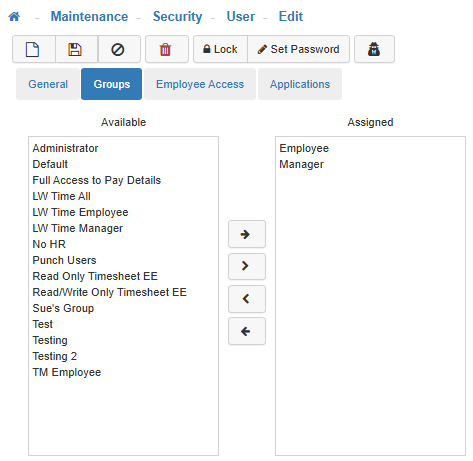
These two groups are ‘layered’ so LightWork will use the highest level of security access for each securable. For our example User, if they have ‘Full Access’ to a securable such as ‘Profiles – Journals’ as part of the Manager Group but are assigned ‘No Access’ from the Employee Group they will still see the Journals section of the Employee Profile as the Manager layer provides them access.
Note: The only trump card for layered security group assignment is the ‘Deny Access’. The ‘Deny Access’ access level acts as a security 'trump card' safeguard. If this is enabled, the User will NOT see this component even if another one of their assigned Role(s) or Groups would provide any level of access.
-
How do I choose the correct Employee access option for a new User?
There are many choices when selecting what kind of Employee access a User will have. Review the information below for details on each option:
-
None
The User will not have access to any Employees in LightWork. -
All
Gives the User access to all Employees in LightWork. -
Organization Levels
Gives the User access to Employees based on their Organization Levels.
Note: This must be continually maintained. -
Primary Manager Hierarchy
Gives the User access to Managers based on the Primary Manager hierarchy system. -
Specific Employee List
Gives the User access to specific Employees. When this option is selected, you will then be allowed to add the specific Employees using the "Add" button.
Note: This must be continually maintained. -
Specific Manager List
Gives the User access to specific Managers. When this option is selected, you will then be allowed to add the specific Managers using the "Add" button.
Note: This must be continually maintained. -
Self Only
Gives the User access to their self-only. -
Company
Gives the User access to the company Employees. -
Direct Reports Only
Gives the User access to their Direct Reports only.
Include Self
Enable this option to allow the User access to their self, along with other Employees/Managers. For example, if "Direct Reports Only" is selected as the Filter Method for Employee Access, the User will only have access to their Direct Reports. Enabling the "Include Self" checkbox, along with selecting a Filter Method of "Direct Reports" will give the User access to their Direct Reports and their self. -
-
What happens when I create a new Username and assign an Employee who was previously assigned to an old Username?
The history of that Employee does follow the new User, the only change that this would affect is having a different User linked to the Employee record, nothing else changes in regards to this. The Appraisals, Goals & Journals are tied specifically to the Employee and have nothing to do with the User, so we would have to investigate via the data to identify why they aren’t seeing them to figure out what’s going on here. When the new User is linked to the Employee, the original User’s association is removed, and nothing else changes.
Note: If they are not seeing Appraisal History or other items that are believed to be associated with the Employee, there is something else at play here. Check that the Employee’s Unique Identifier (SSN) did not change. If so, that would cause a new Employee record to have been created and thus cause an issue. If this problem does occur HR will need to join the two Employees into one. If there still seems to be an issue, please contact our Support Team.
-
Can I troubleshoot what an Employee is reporting they are seeing in the system without resetting their credentials?
Yes! Through the use of our User Impersonation functionality. Allows Administrative Users with appropriate Group Security access to 'Impersonate' a User for troubleshooting purposes. The User would need to have Full Access to the ‘User Impersonation’ securable on their assigned Group Security. The Impersonation functionality allows Administrators to go into the system to ‘Impersonate’ a User and see what they see without having to reset the User's password.
Note: During an Impersonation session, the top toolbar of your LightWork session will display as a dark red banner and an icon will display in the upper right-hand corner of the screen which has a tooltip message of ‘Impersonation Active’ as a reminder.
-
Can I give Non-Administrative Users the ability to Impersonate a User in LightWork?
LightWork’s recommended use scenario for the Impersonation tool is to be used by Administrative Users. Any changes made during an Impersonation session would be attributed to the User being impersonated during audit tracking so Administrative Users need to be mindful of any changes made in the system during an Impersonation session. If you have any further questions about how this can be implemented with your team, reach out to our Support Team or your LightWork Consultant.